Edit an existing photo
Have the right subject but want a different look? Upload your photo and describe a new setting, outfit, lighting style, or other change.
Edit photos and create images, videos, and audio in one place.
0 / 5000
Choose an image and use its prompt as your starting point.
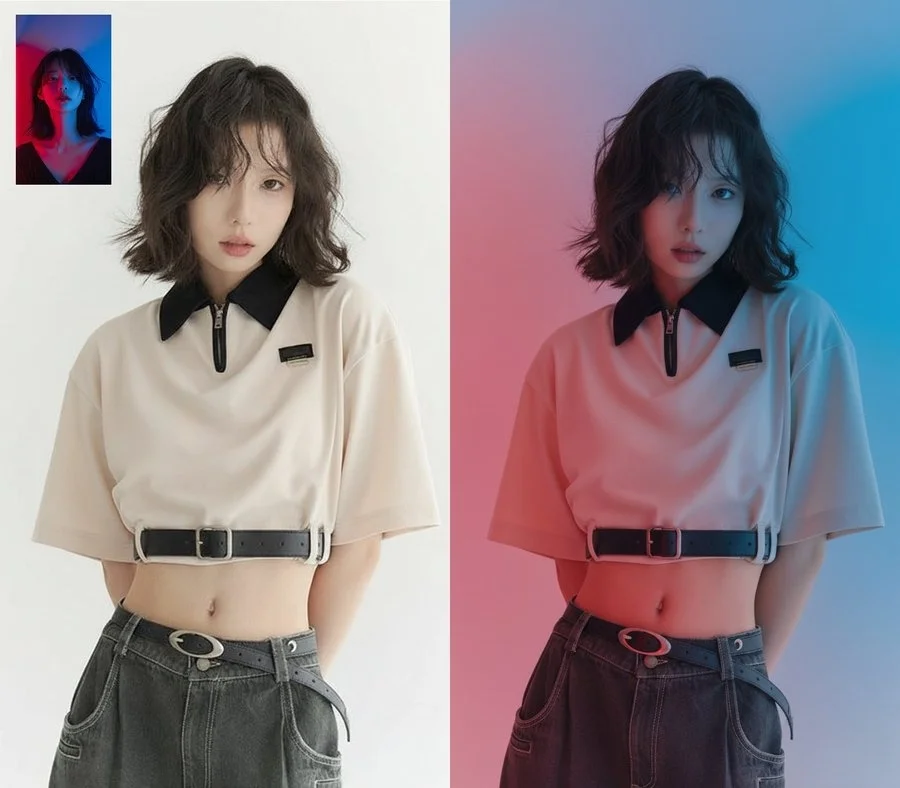
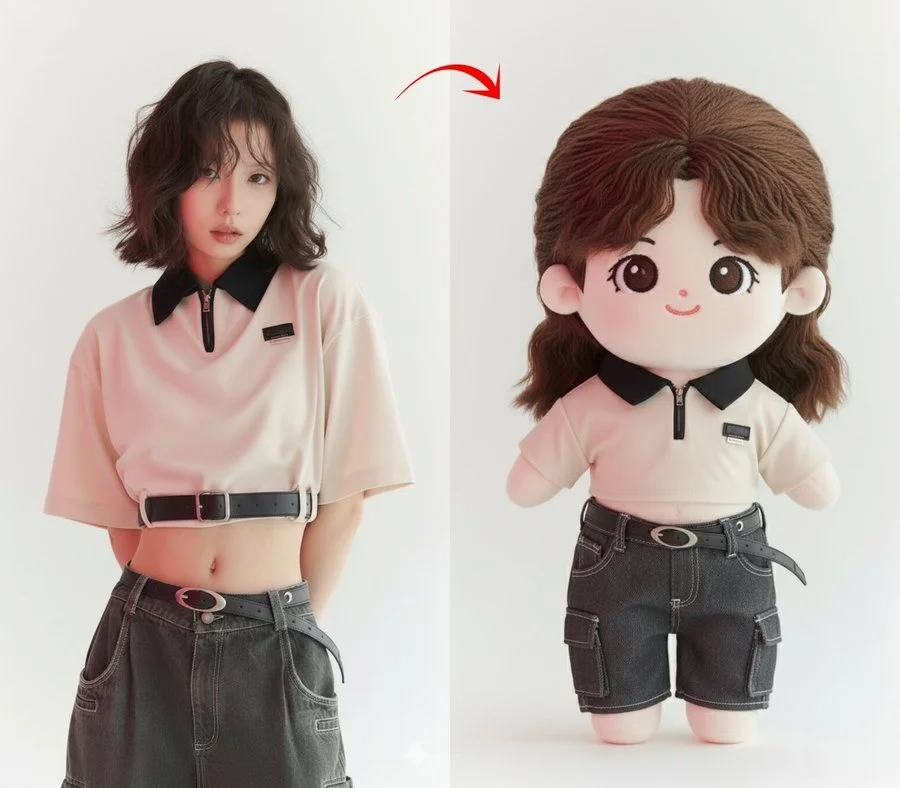


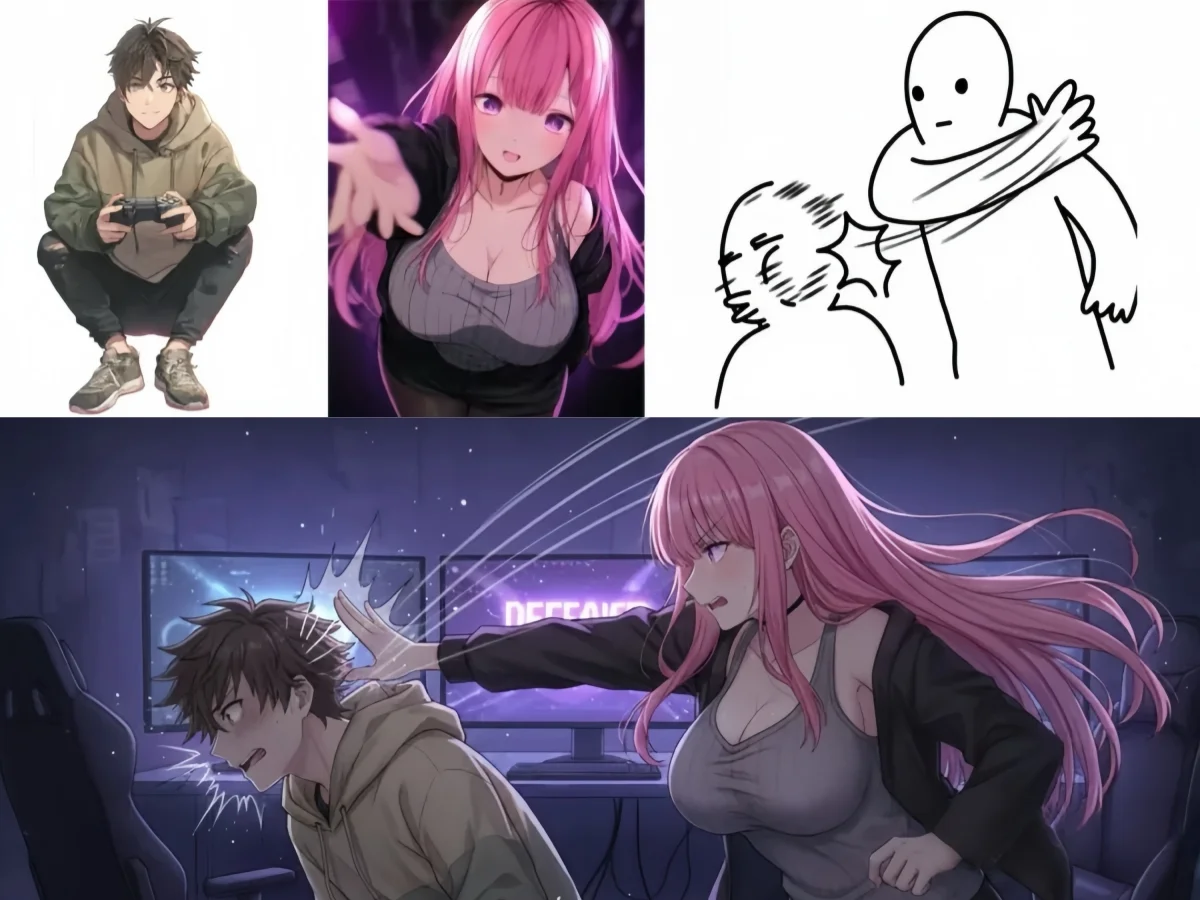
Pixlr AI is an online creative platform for editing photos, generating images, and preparing visual assets. It also offers video, speech, talking-avatar, and 3D tools for developing ideas in other formats.
Have the right subject but want a different look? Upload your photo and describe a new setting, outfit, lighting style, or other change.
Start without a reference. Describe a subject, its surroundings, and the style you have in mind to explore an original composition.
Turn a product photo, portrait, or illustration into a cutout for a listing, presentation, or another design.
Enlarge a picture to 2× or 4× its dimensions when you need a bigger layout or more pixels for a crop.
A useful editing prompt explains both the change and its purpose. Choose the approach that fits the result you need.
“Place this bag on a pale stone counter in soft daylight” gives an AI photo editor a clearer direction than “make it better.” Name the subject, setting, and visual change that matter to you.
For a product, call out its shape, color, and label. For a portrait, identify the facial features or clothing you want to retain. Compare those details with the original when choosing an edit.
To show a subject in a new scene, describe that scene in the image editor. To place the same subject into your own layout later, remove the background and save a transparent cutout.
Need a sticker or illustration that does not exist yet? Generate a transparent image from text, or use a reference to guide a new version. Use background removal when you want to cut out an existing subject instead.
Once the composition is ready, use the AI image upscaler to prepare a larger version for your layout. Choose 2× or 4× enlargement for a product page, a presentation, or a design that needs more room for cropping.
Build around one clear visual goal, whether you are preparing a product image, a portrait, or artwork for a post.
Upload a photo when its subject or appearance should guide the result. Start with text when you want to invent the whole scene. In either case, describe what the finished image should show.
Review the first result for framing, lighting, and subject details. Make the next instruction about a specific change so you can judge whether it brings the image closer to your idea.
Download your preferred image. If your layout needs a larger file, upload it to the upscaler; if it needs an isolated subject, use the background remover before placing it in your design.
A finished image can become the starting point for a clip. A script can become its narration or a talking introduction.
Use a photo or illustration as the starting frame and describe how the subject or camera should move. You can also generate a scene directly from a written prompt.
Pair a portrait with spoken audio to create a talking avatar. Use it for a character introduction, an explanation, or a message that benefits from a visible speaker.
Create a voiceover, explore a voice design, clone a voice, or build dialogue with different speakers. Download the audio for your video project or talking avatar.
Explore the same idea from another angle or develop its shape in 3D.
Choose a starting point, understand the tools, and decide what to do next.
Pixlr AI combines photo editing and image generation with tools for background removal, transparent images, and upscaling. You can also create videos, voiceovers, talking avatars, and 3D models. Start with the tool that matches what you have: an image, a written idea, a script, or recorded audio.
Yes. Pixlr AI offers free AI image generation and photo editing. Upload a photo to reshape its setting and style, or describe a new image for a product presentation, a social post, or your next design.
Yes. Upload your photo to the image generator and write instructions for the edit, such as changing the setting or giving the image an illustrated style. Include the details you want to keep, then review the result against your original.
Yes. Use text to image and describe the subject, setting, and visual style you want. A reference image is useful when an existing subject or look should guide the result, but it is not required for text-based generation.
Remove the background when you already have a picture and want to isolate its subject. Generate a transparent image when you need a new asset, such as a sticker or illustration, from text or a reference. A transparent PNG can then sit over another color or image without a rectangular background.
Usually, choose your final composition and make the content changes first. Upscale that version when you need larger dimensions for your layout. Review the enlarged result at full size to check small details and edges before using it.
Yes. Image to video adds motion to a still image using your written direction. For narration, turn a script into speech and download the audio for your video project. To make a talking portrait, use the avatar tool with a portrait and a spoken track.
Upload a photo to edit or describe an image to generate with Pixlr AI.
Start Free